
Shopify AI Toolkit Installation: Step by Step Guide
 Shopify AI Toolkit Kurulumu: Adım Adım Rehber
Table of Contents
The Shopify AI Toolkit is an open-source bridge that connects your store to an AI coding agent (Claude Code, Cursor, Gemini CLI, Codex). Once installed, you can make changes to your store using natural language commands like “optimize all my products for SEO” without ever entering the Shopify Admin Panel. In this post, I will explain step-by-step how to install the Shopify AI Toolkit with Claude Code and connect your store.
⚠️ Important: Changes made to the store through this method are pushed live directly; options like draft, sandbox, and rollback are bound to the AI’s limitations. Therefore, I strongly recommend being extremely careful when performing these operations.
1. Install Claude Code
Run the following command in your terminal:
curl -fsSL https://claude.ai/install.sh | bash
Once the installation is complete, you will see the message “Claude Code successfully installed!” On some systems, the installation is done under ~/.local/bin, but this folder is not yet added to the PATH.
The solution is simple; the installation screen already provides the command:
echo 'export PATH="$HOME/.local/bin:$PATH"' >> ~/.zshrc && source ~/.zshrc
After running this line, close and reopen your terminal, and the claude command will be available.
2. Install the Shopify AI Toolkit Plugin
Once Claude Code is up and running, we add and install the plugin from Shopify’s official plugin marketplace:
claude plugin marketplace add Shopify/Shopify-AI-Toolkit
claude plugin install shopify-plugin@shopify-ai-toolkit
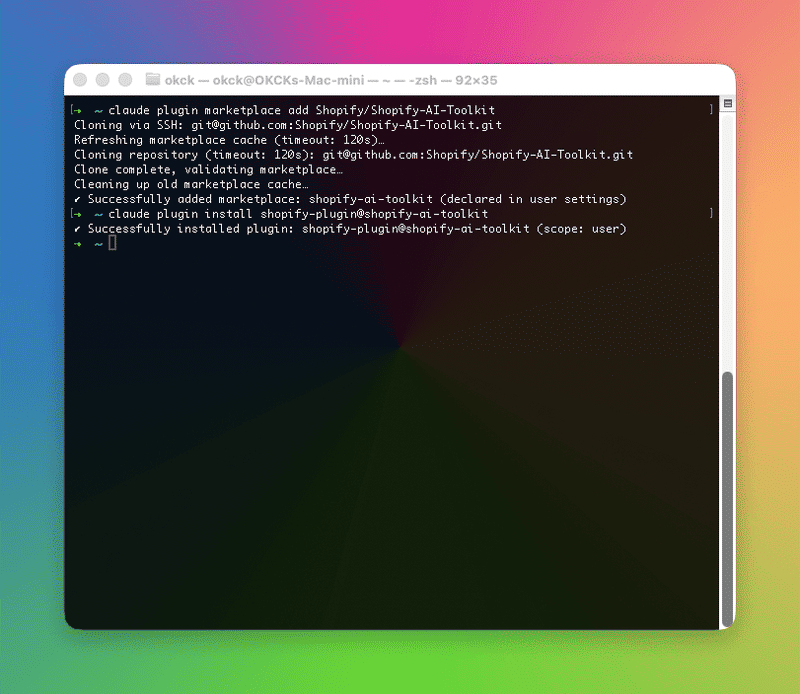
The first command clones the marketplace via SSH and confirms with “Successfully added: marketplace: shopify-ai-toolkit”. The second command installs the plugin for the user scope (scope: user) and shows the “Successfully installed” message. This makes the Shopify plugin accessible in every project you open on this system.
3. Run Claude Code for the First Time
claude
The first time you run it, you will go through a few setup screens.
Choose a terminal theme
Choose from Dark mode / Light mode / colorblind-friendly options. You can change this later with the /theme command.
Choose a sign-in method
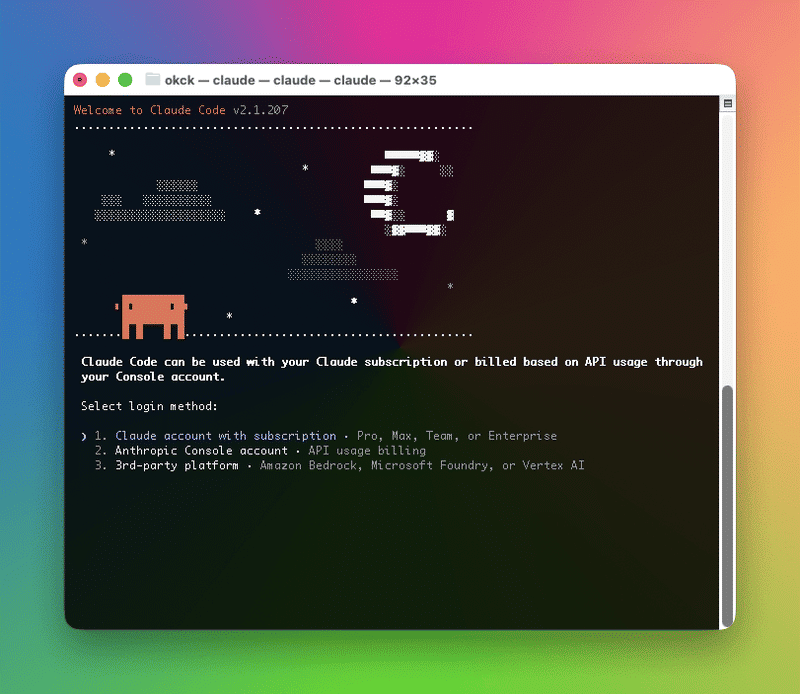
Three options appear:
- Claude account with subscription: Choose this if you have a Pro, Max, Team, or Enterprise subscription
- Anthropic Console account: For those who want API usage-based billing
- 3rd-party platform: Access via Amazon Bedrock, Microsoft Foundry, or Vertex AI
For most store owners and mentorship participants, the first option is the best. If you don’t have a Claude account, you can create one at https://claude.ai and get the Pro* plan.
- Claude Code only works with Pro, Max, Team, and Enterprise subscriptions. It cannot be used with the Free plan.
Security notes
Before proceeding, two important reminders appear:
- Claude can make mistakes; you are responsible for its actions, and you should especially review the outputs when running code
- To avoid prompt injection risks, only use it with code you trust.
Press Enter to continue.
4. Connect Your Store
After the installation is complete, run the onboarding command provided by the Shopify plugin:
/shopify-onboarding-merchant
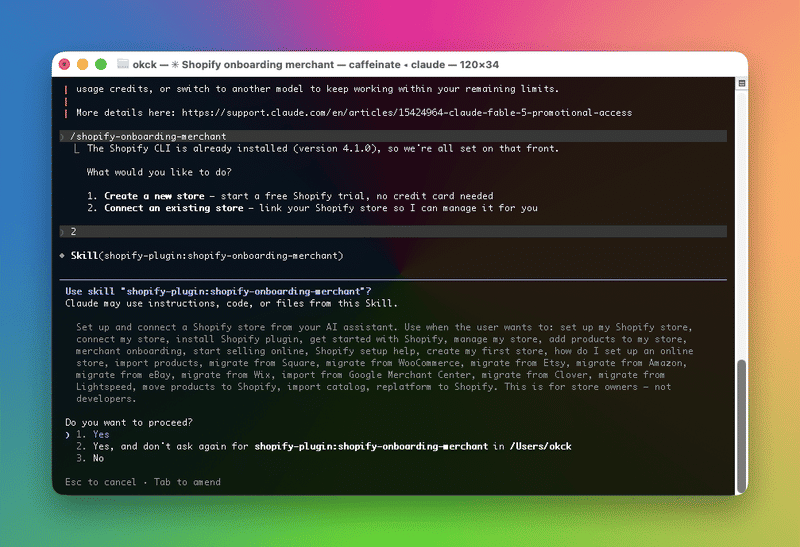
Two options appear:
- Create a new store: Opens a free trial store without requiring a credit card (ideal for testing/learning)
- Connect an existing store: Connects an existing store
After making your choice, Claude Code will ask for permission to use the relevant “shopify-onboarding-merchant” skill. Once you grant permission, your store will be connected to Claude Code, and you can start making changes to your store using natural language commands.
5. Difference Between Shopify Connector App and Toolkit
Everything I’ve explained so far is about the developer tool Shopify AI Toolkit, released in April 2026 and running in the terminal via Claude Code. But there’s a second way to integrate Shopify with Claude, and I’ve seen many people confuse the two.
Don’t treat the Toolkit as “just a developer tool”. As I explained above, even a store owner with no coding knowledge can execute operations like editing products/collections and SEO optimization using natural language commands. The real difference is not the user profile, but where it runs and how deep it goes.
Shopify Connector App is an official connection located under Settings → Connectors in Claude.ai’s own interface. You can connect your store to Claude this way directly from your browser, without ever touching the terminal.
The difference between the two is summarized in the table below:
| Shopify AI Toolkit | Shopify Connector App | |
|---|---|---|
| Where it runs | Claude Code (terminal), Cursor, Codex, Gemini CLI | Claude.ai interface, browser |
| Depth of access | Full Shopify GraphQL schema, Liquid validation, documentation search, unlimited operations via CLI | Predefined ~25 tools: product/order/customer management |
| Installation | As explained above | Settings → Connectors → Shopify → “Request to connect” |
| Strengths | Theme/app development, custom GraphQL mutations, API-level operations | Quick, everyday operations: “update this product”, “summarize this month’s orders” |
In short, both use the same MCP infrastructure, but the Toolkit provides a much broader and deeper access, digging all the way down to Shopify’s full schema, documentation, and CLI. The Connector App, on the other hand, is for daily tasks like “how many orders came in this month,” or “add these products to that collection”, it’s a toolset designed for users who want to perform quick tasks without writing code.
My clear advice: If you are developing themes/apps or need the broad access provided by the Toolkit (especially for complex, repetitive bulk operations), install the Toolkit. If you only need simple, everyday store operations and don’t want to touch the terminal at all, connect the Connector App directly.
⚠️ Attention: When you connect the Connector App, your store data is processed through Anthropic’s infrastructure. If you are subject to regulations like GDPR, review which data is shared before connecting.
What Can You Do After Connecting Your Store?
After connecting, you can work in your store using natural language commands — including adding products, editing collections, and transferring products from other platforms (Square, WooCommerce, Etsy, Amazon, eBay, Wix, Lightspeed, Clover, Google Merchant Center).
But let me emphasize again: these actions are applied to your store immediately without approval. Be sure to try them first in a developer/test store, not your live store.